In this Boxshot King tutorial, you will learn how to add images to your product graphic using images you upload.
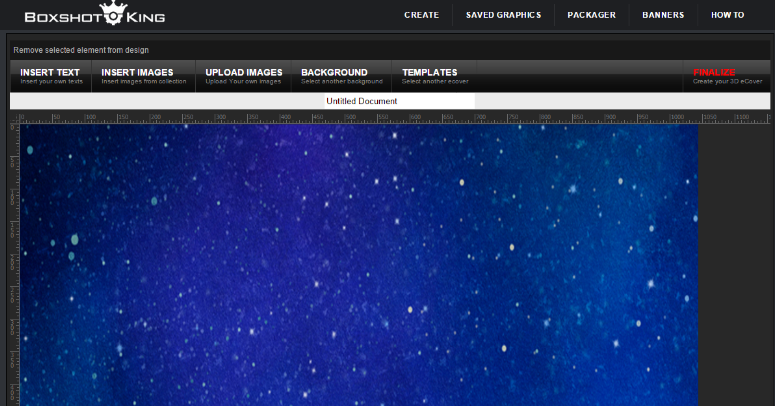
- Once you have chosen a background, you will be at this screen.
- Click on "upload image".
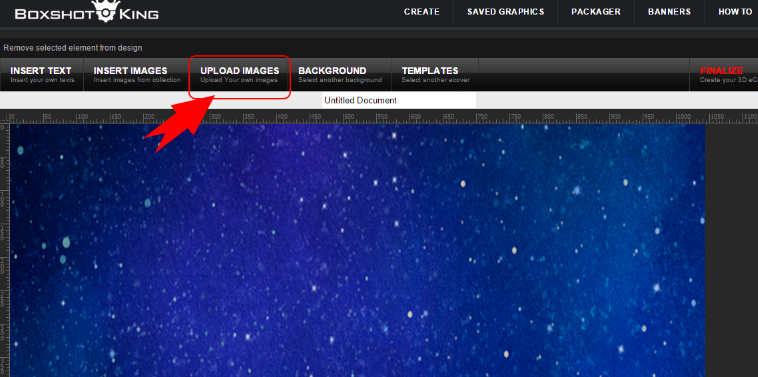
- Choose an image you may have already uploaded or select a new image (click upload image and choose image from your computer).

- Edit your stock image by clicking tabs at the top menu (cut, copy, flip, arc, grayscale, sharpen, blur, contrast, rotate, color).
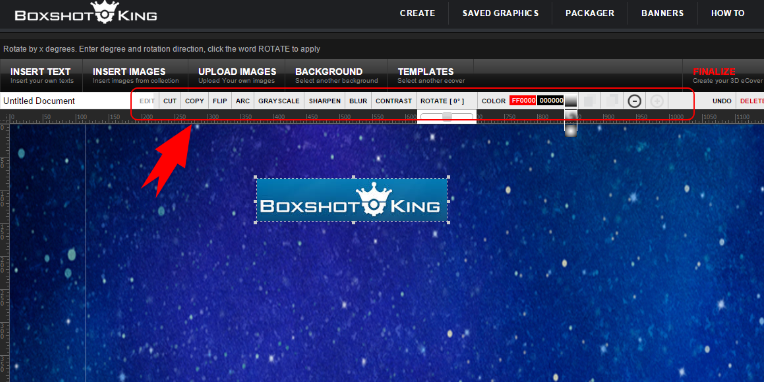
- To move your image by clicking on the image (it will be outlined) and then dragging it to where you want it on the screen.
- To resize the image click on the image to select it (it will be outlined) then at the corners, drag inward.
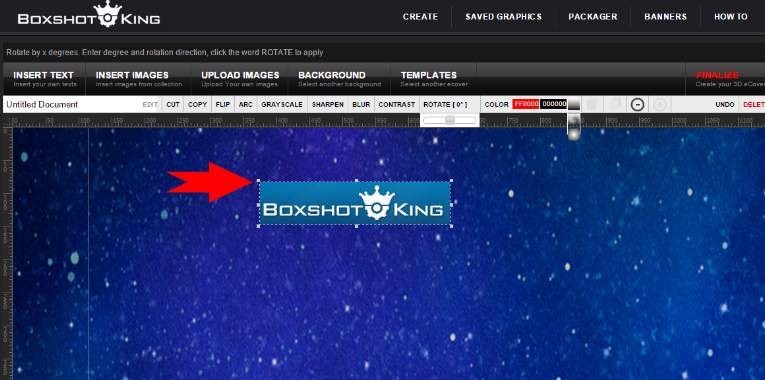
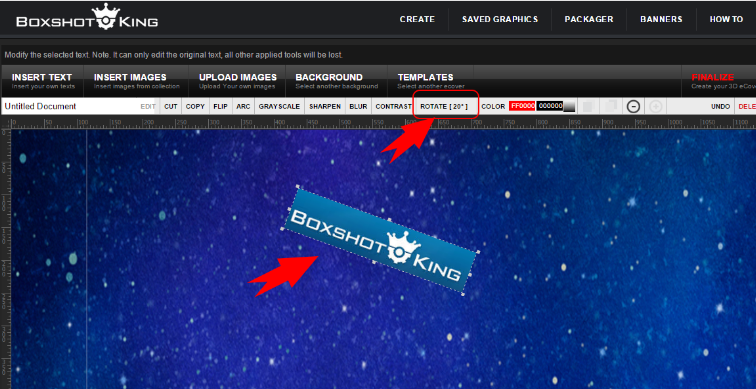
- To rotate the image, click on the image to select it (it will be outlined) then choose rotate at the top menu and use the scroll bar to select the degree you want to rotate it.